
1. Enable approval for the account
Sign in to LevelSync with access to Account Settings and Manage Shares. The screenshots show the English interface.
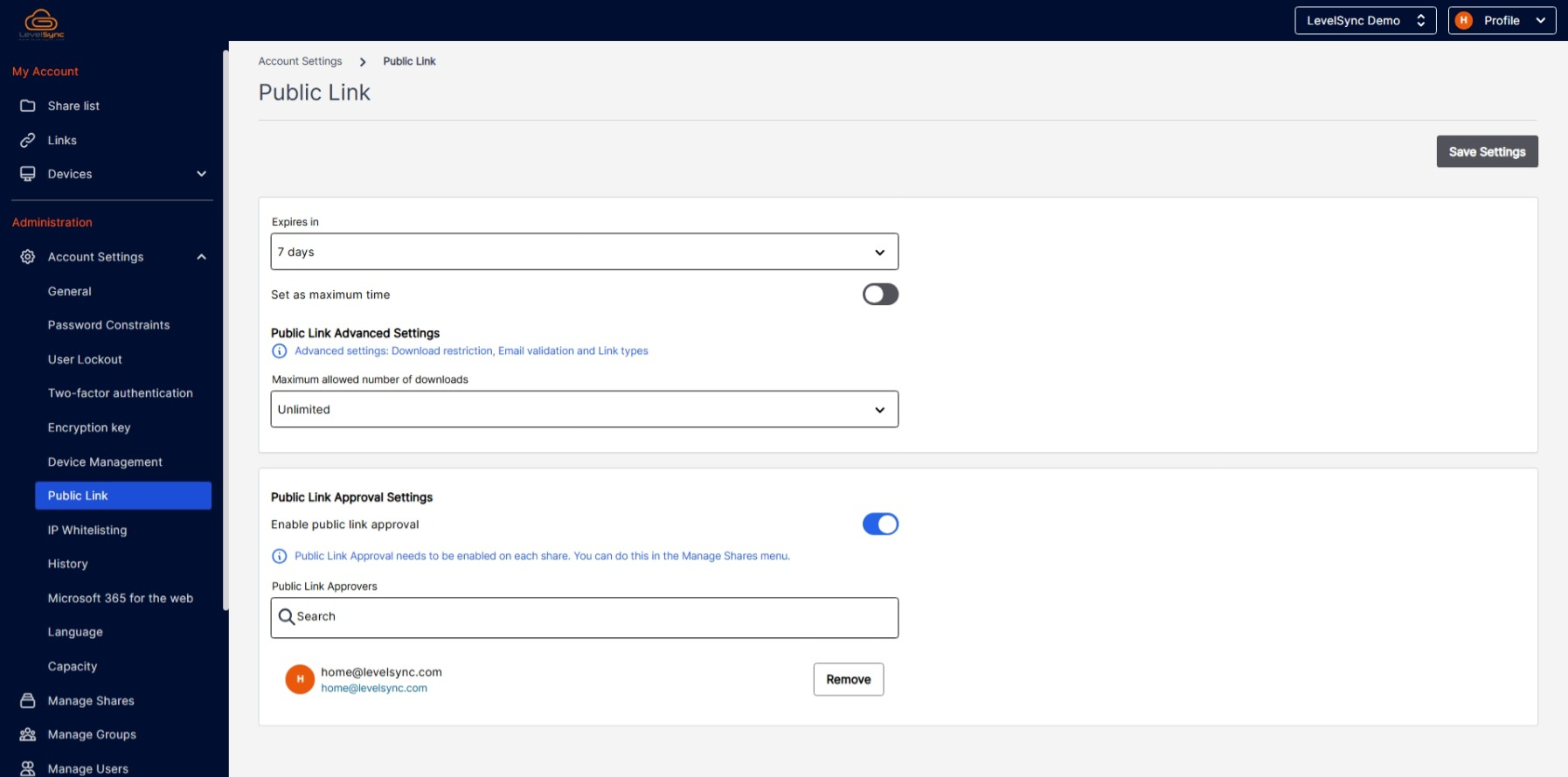
- Open Account Settings → Public Link.
- Find Public Link Approval Settings and turn on Enable public link approval.
- Check that the right people are listed under Public Link Approvers. They will review the links.
- Select Save Settings.
The account setting is the first step. Next, enable approval on each Share where new links should require it.
2. Enable approval on a Share
- Open Manage Shares.
- Open the three-dot menu for the Share you want to change.
- Select Public Link Approval.
- Check the Share name in the dialog.
- Turn on Enable public link approval and select Save.
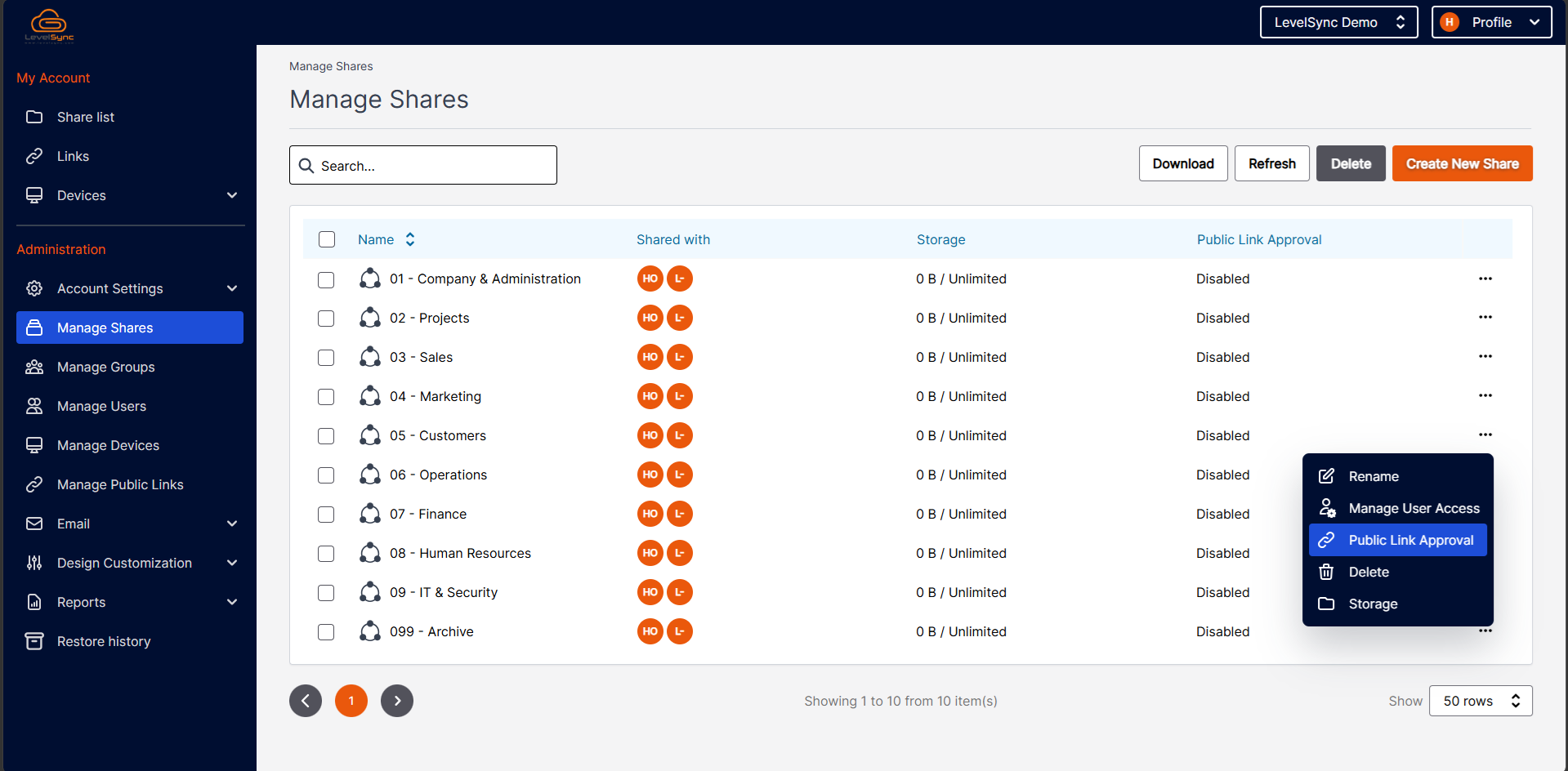
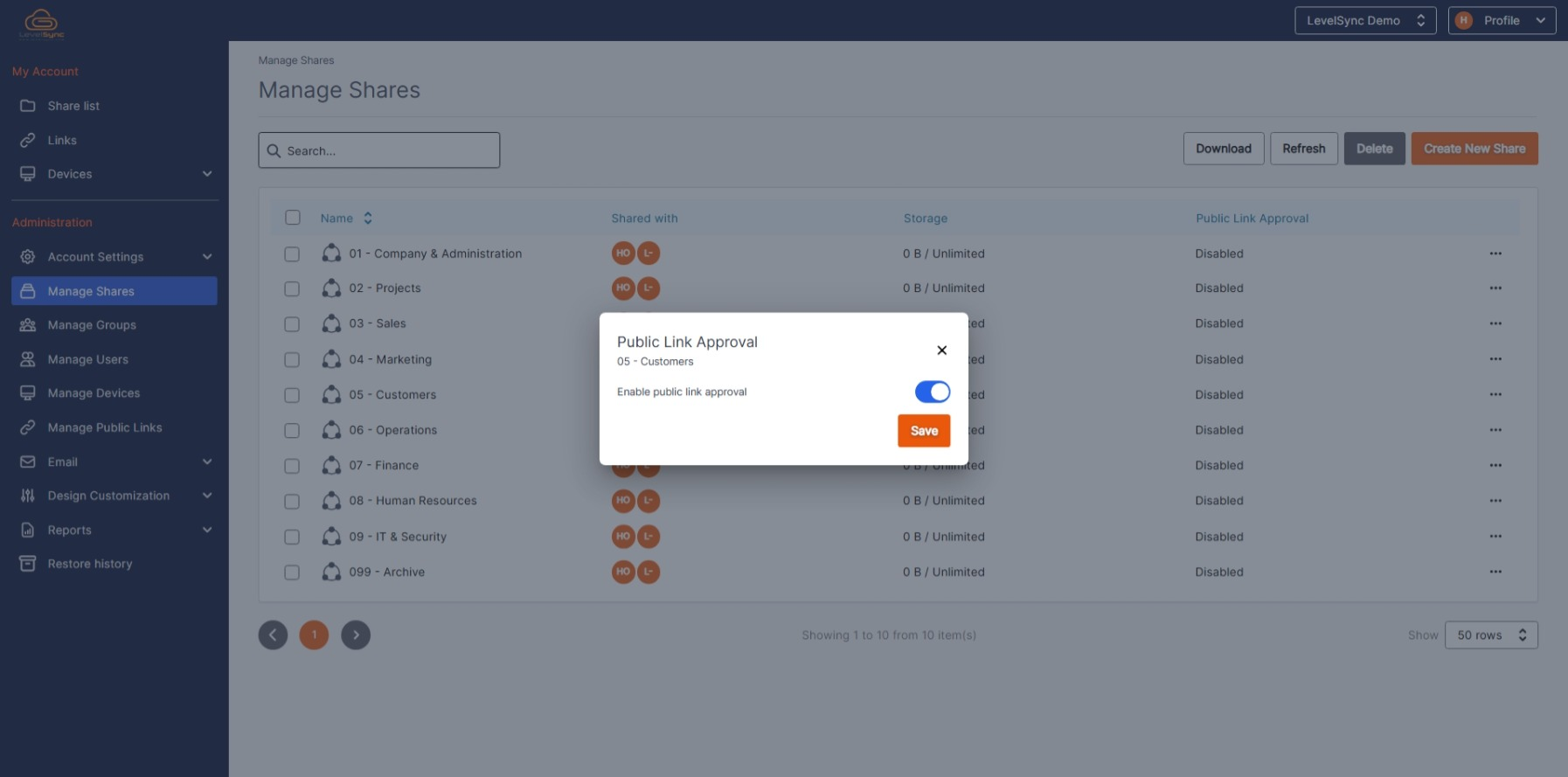
Repeat for each Share that should require approval. The list screenshot was taken before saving, so it shows Disabled.
3. Create a public link
This example shares a folder on a Share that requires approval.
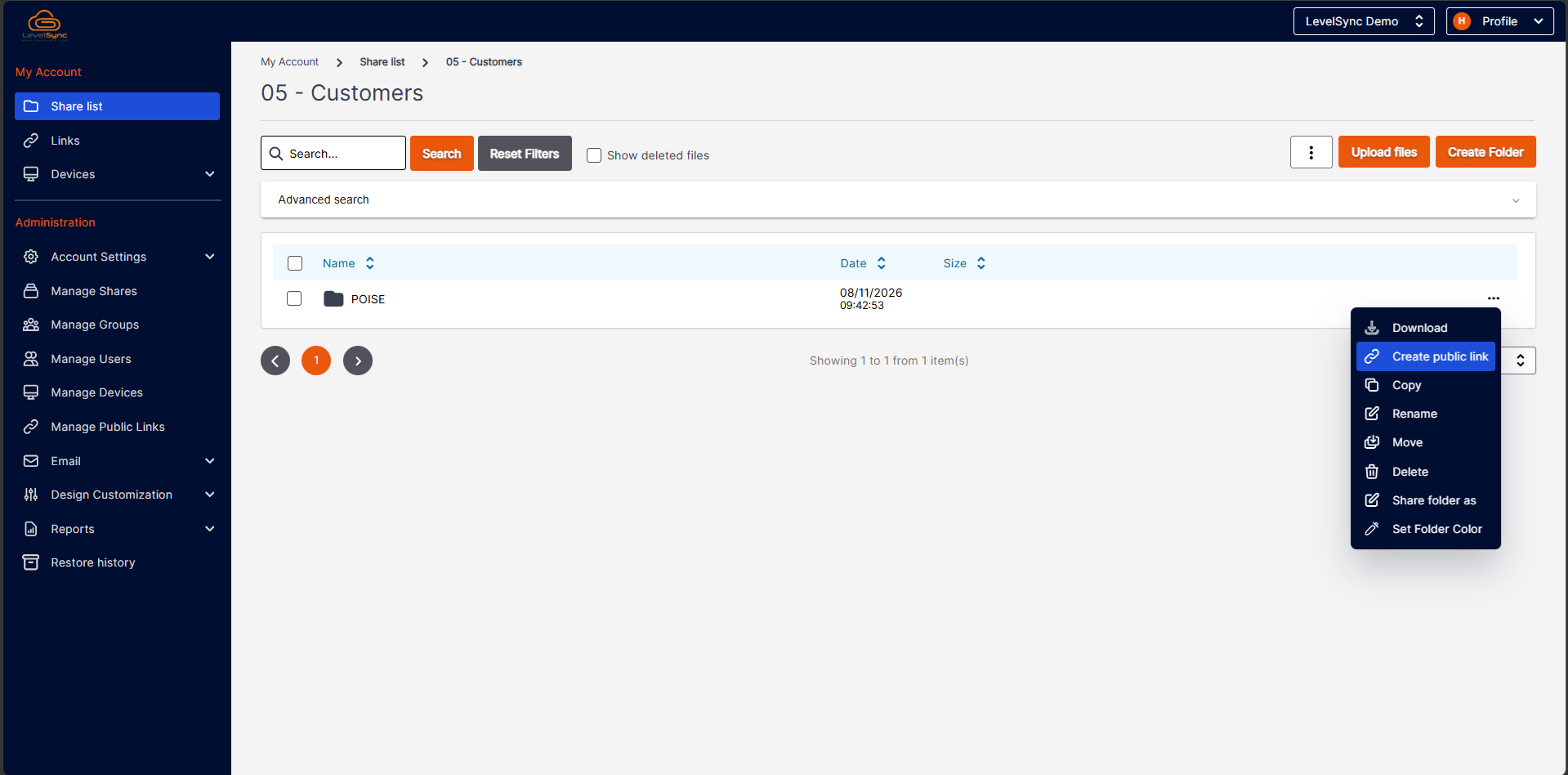
- Open the intended Share from Share list.
- Open the folder's three-dot menu and select Create public link.
- Review the settings in the dialog before selecting Create.
- Link Type
- Choose how the link can be used. The example has Preview and Download selected.
- Restrict Number Of Downloads
- Choose a download limit appropriate for the sharing task. The example shows Unlimited.
- Expires In
- Choose how long the link should remain valid. The screenshot shows 7 days.
- Add Personal Message
- Add a message for the recipient if needed. It appears in the recipient view.
- Enable password protection
- Decide whether the link needs password protection. The switch is off in the example.
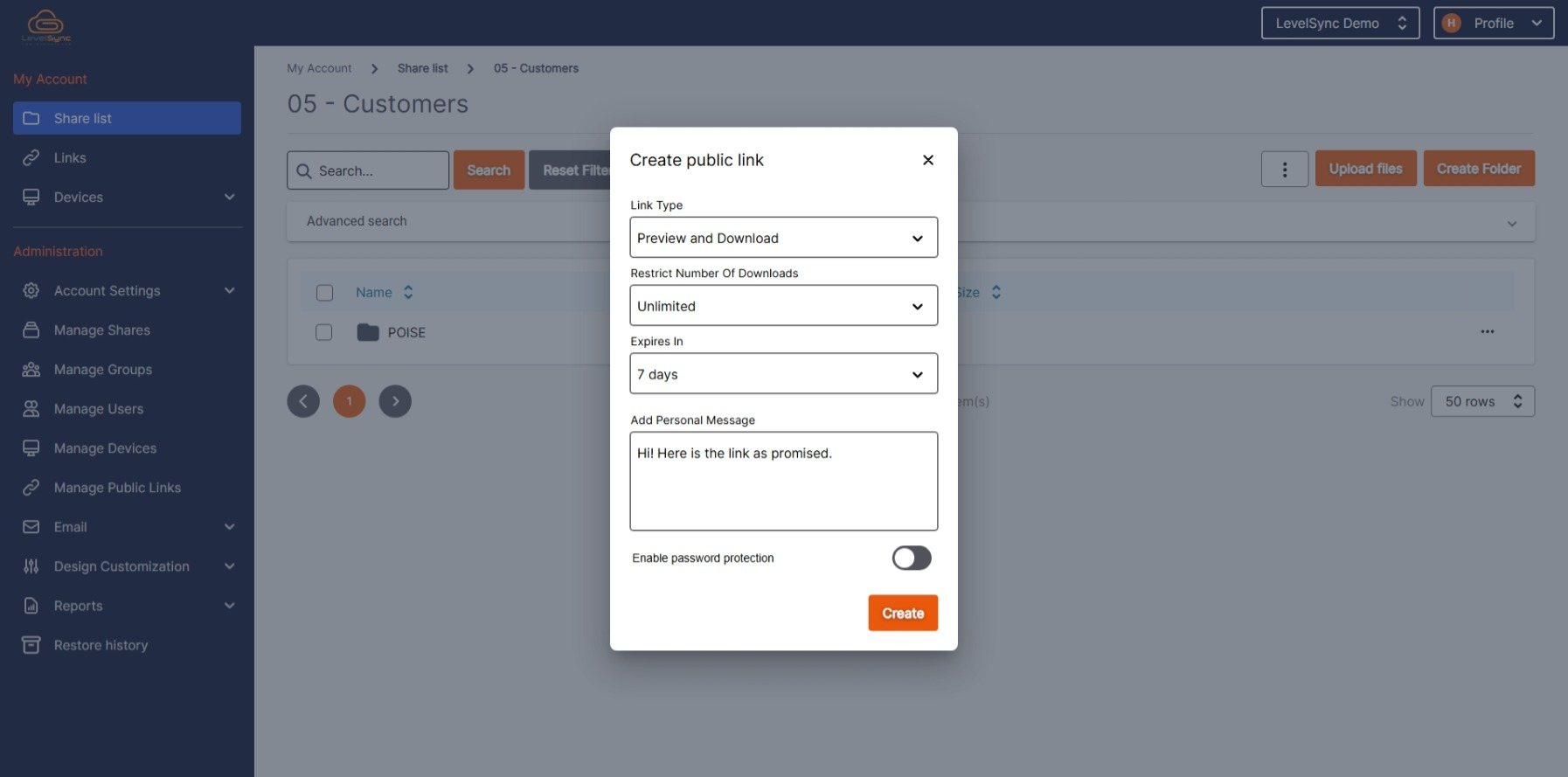
The values in the screenshots are examples, not recommended defaults. Set the expiry, download limit and protection to suit the content being shared.
4. Wait for approval
The new link appears with status Pending in Manage Public Links. It is waiting for an approver to review it.
Someone opening the link may see a message saying access is unavailable and the link might be blocked or pending approval. The message does not distinguish between these causes. If you are the recipient, contact the sender; the sender or administrator can check the link.

5. Review and approve the link
The review email summarises the sharing settings: file or folder, link type, expiry, protection and any specified recipients.
- Check that the content may be shared and that the recipients and settings are appropriate.
- Select Review request in the email to open the review. You can also go to Manage Public Links in LevelSync.
- Find the link and check its name, owner, path, expiry, protection and status. The example shows Pending.
- Open the link's three-dot menu and select Approve when you want to approve the sharing request.
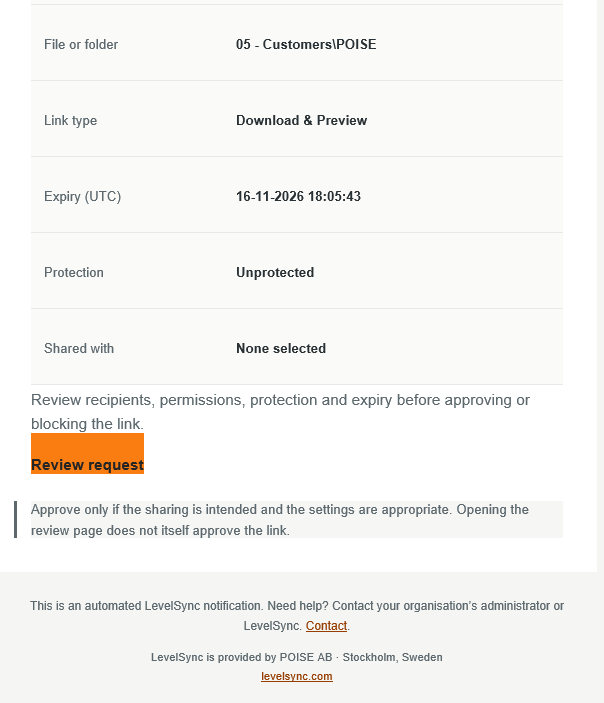
Opening the request does not approve it. The email opens the review page; the decision is a separate action. Also check the time label: Expiry (UTC) in the email is expressed in UTC.
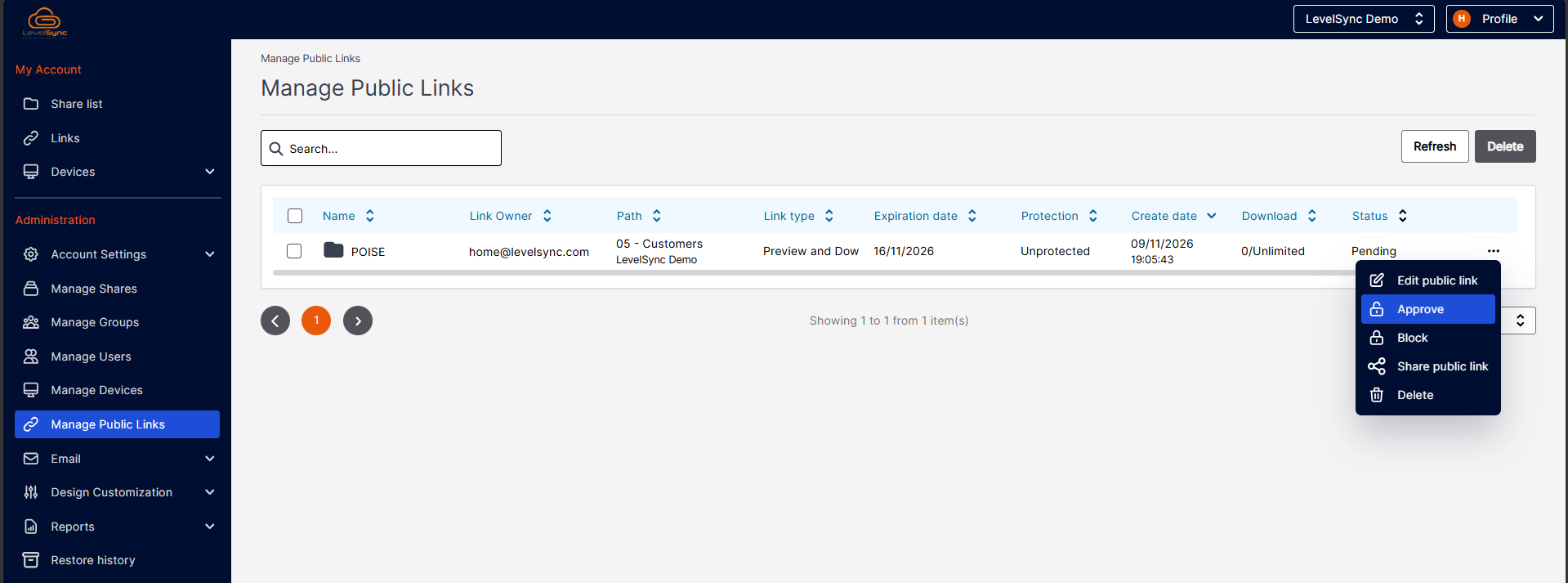
The menu also contains Edit public link and Block. If the sharing request should not be allowed, you can select Block. Do not approve a request solely because it arrived by email.
6. Open the approved link
The approval email has the heading Your public link has been approved. It confirms approval and explains that the link can be used subject to its configured permissions and restrictions.
- Select Open approved link in the email.
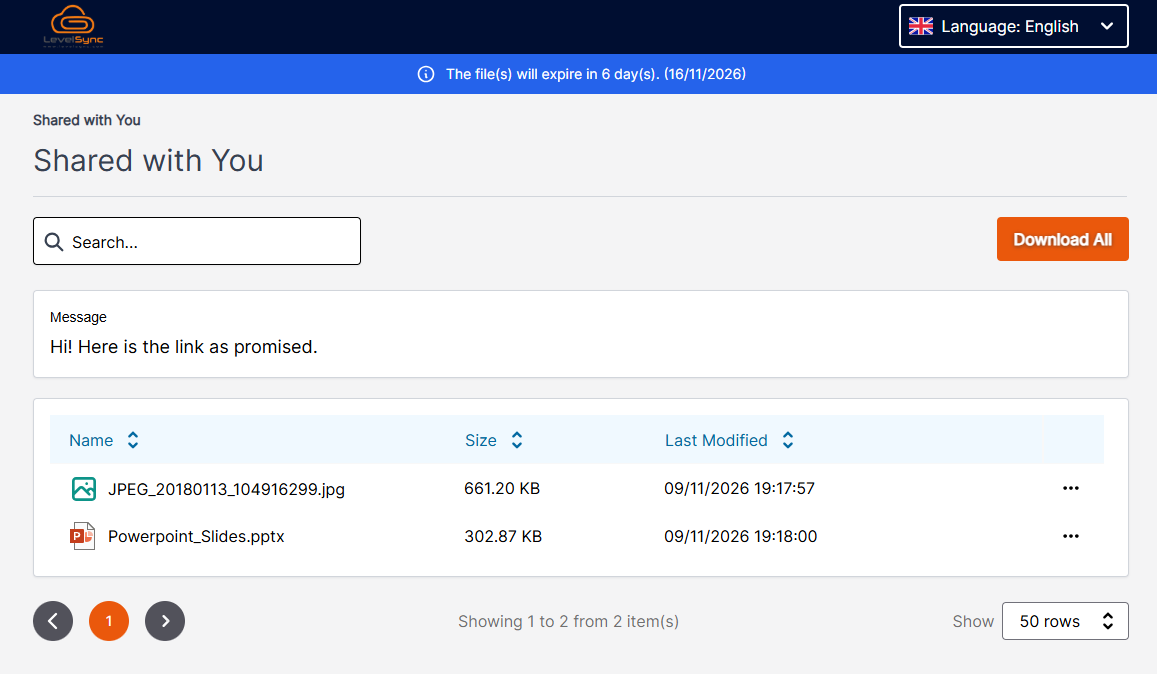
- The recipient view, Shared with You, displays the shared content and any message.
- Check the expiry information. In the example it appears at the top, and Download All is available because the link allows downloads.
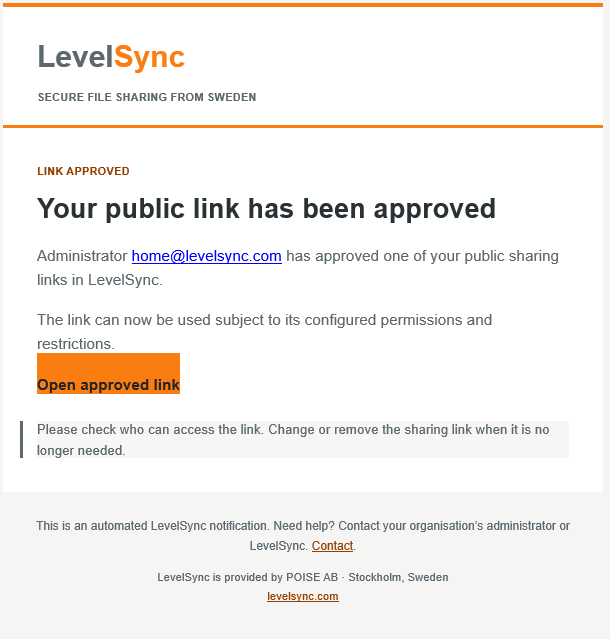
Approval does not replace the link's other settings. Change or remove the sharing link when it is no longer needed.
Common questions
Is enabling the account setting enough?
No. Approval also needs to be enabled on the relevant Shares through Manage Shares.
Why can I not open the link?
Check its status and expiry in Manage Public Links. The access message shown above can refer to either blocking or pending approval. If you are the recipient, contact the sender.
Does opening the email or selecting Review request approve the link?
No. Review request opens the review. Approval is a separate action using Approve.
What if I cannot see the administration menus?
Contact your organisation's administrator to check your access and which features are enabled.
Does an approved link give Share membership?
This guide covers review of public links. Share permissions and membership are managed separately. Approval also does not make an already downloaded copy revocable.
Need more help? Prepare your support request.